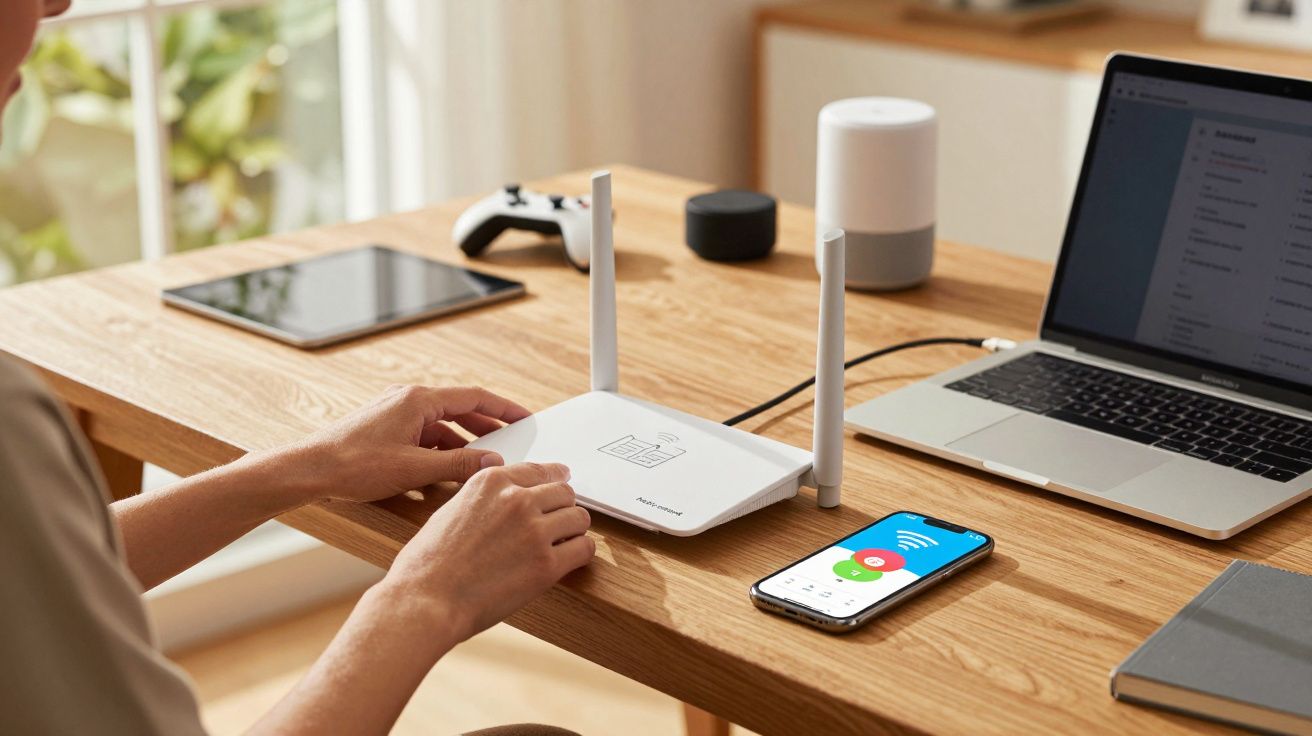
Most people meet and on the same afternoon: a new Wi‑Fi router arrives, the broadband line is “active”, and suddenly your home turns into a small IT department. It matters because the router is now the invisible gatekeeper for work calls, streaming, smart speakers, doorbells, and anything else that wants a signal. When it feels harder than it should, it’s rarely because you’re “bad with tech”.
The surprise is that modern routers aren’t really designed for humans first. They’re designed to survive messy homes, mixed devices, and support calls-so they hide complexity until it leaks out in the most confusing way possible.
The moment a router stops feeling like a plug-and-play box
You do the sensible things: you follow the leaflet, you scan the QR code, you name the network something witty, and you wait for the lights to settle. Then a laptop connects but the phone crawls. The smart TV buffers. One room is perfect, the next room is a dead zone.
It’s tempting to blame the router as “weak”, or yourself as “not technical”. But the real problem is feedback: Wi‑Fi fails quietly. When it goes wrong, it doesn’t say why-it just gets slower, then weirder, then intermittent.
Wi‑Fi is one of the only household utilities where the key problems are invisible, variable, and shared with your neighbours.
The surprising reason routers feel hard: you’re managing a radio network, not “the internet”
A router isn’t just a box that gives you internet. It’s a live radio system trying to negotiate airtime between dozens of devices, while the walls, the microwave, the neighbour’s router, and the baby monitor all interfere in slightly different ways.
That’s why it can feel irrational. Move the router 30cm and a room wakes up. Add a new gadget and everything slows down at 7pm. Restart it and it behaves for two days, then slips back into problems you can’t quite describe.
The three forces working against you
- Physics: signal strength drops fast with distance and obstacles, and some materials (foil-backed insulation, concrete, underfloor heating, mirrors) are brutal.
- Competition: Wi‑Fi is shared air. Flats and terraces can have dozens of networks overlapping, all politely taking turns in a crowded space.
- Compatibility: your newest phone and your oldest smart plug may be forced to share settings that suit neither of them.
Routers try to automate these compromises, but automation is exactly what makes it feel like you’re fighting a ghost. The router makes a “smart” decision, your device disagrees, and you only experience the argument as lag.
Why the settings look simple (and why that makes it worse)
Most router apps present a friendly front: one big network name, one password, maybe a “speed test” button. Underneath are decisions about bands, channels, widths, steering, security modes, and how aggressively the router should try to switch a device to a “better” signal.
The interface stays simple because support teams can’t coach everyone through radio engineering. So routers hide detail until something breaks-and then you’re asked questions like “Are you on 2.4GHz or 5GHz?” as if you’ve been managing that choice all along.
A few terms that make people feel lost are actually just poor labelling:
- SSID = the network name you see in the Wi‑Fi list.
- 2.4GHz vs 5GHz = longer range and stability vs faster speed over shorter distances (in most homes).
- Mesh = multiple access points pretending to be one network, so devices roam without you manually switching.
None of this is “advanced” in concept. It’s just presented at the exact moment you’re already annoyed.
The problems that look like “bad Wi‑Fi” but aren’t
Before you buy a new router, it helps to know what you’re actually experiencing. Several common failures have the same symptom-slow or dropping internet-but very different causes.
| What you notice | Likely cause | Quick check |
|---|---|---|
| Wi‑Fi shows “connected” but nothing loads | DNS or ISP hiccup | Try a different website, then reboot modem/router |
| Fast near the router, awful in bedrooms | Placement and obstacles | Temporarily move router higher/central and retest |
| Fine until evenings, then slows | Neighbour congestion | Run a speed test at 10am vs 8pm |
| One device always misbehaves | Device Wi‑Fi chip/settings | Forget network and reconnect; update device OS |
If you don’t separate “Wi‑Fi issues” from “internet issues”, you can spend hours changing wireless settings when the broadband line is the real bottleneck.
A 15-minute way to make it feel manageable again
You don’t need to become an expert. You just need a short routine that turns invisible problems into visible clues.
1) Work out if the internet is fine without Wi‑Fi
If you can, plug one device in via Ethernet (even temporarily). If Ethernet is stable but Wi‑Fi is flaky, you’ve narrowed the problem to the wireless layer.
No Ethernet port? Stand next to the router and test on Wi‑Fi. If it’s strong right beside the router but weak elsewhere, that’s coverage, not broadband speed.
2) Fix placement before you touch settings
Routers hate being treated like a decorative object. Aim for:
- chest height or higher (a shelf beats the floor)
- away from TVs, metal cabinets, fish tanks, and large speakers
- not stuffed behind the sofa or inside a cupboard
- roughly central, if you can manage it
This sounds basic, but it’s often the single biggest improvement because it changes the radio environment, not just the software.
3) Split the network names if your home has “fussy” devices
Some routers merge 2.4GHz and 5GHz under one name and “steer” devices automatically. That’s convenient until it isn’t-especially with older smart home kit that only likes 2.4GHz.
If your app allows it, try separate names like:
HomeWiFi(5GHz)HomeWiFi-2G(2.4GHz)
Then put smart plugs, printers, and doorbells on 2.4GHz, and keep laptops/phones on 5GHz where possible. It’s not elegant, but it’s predictable.
4) Update firmware once, not five times a year
Router updates fix stability and security issues, but most people only discover them after months of weird behaviour. Check the router app for a firmware update and apply it when you have 10 quiet minutes.
The bit nobody warns you about: “more devices” changes the whole network
A home with two phones and a laptop behaves very differently from a home with:
- two TVs
- a games console
- three laptops
- tablets
- smart speakers
- cameras
- smart lights
- a couple of ancient IoT gadgets that only speak older Wi‑Fi standards
Even if each gadget uses little data, it still competes for airtime and attention. Some older devices are especially disruptive because they force the router to spend longer “talking” in ways that slow everyone else down.
This is why the router that seemed perfect when you moved in can feel mysteriously worse a year later. The environment changed.
When a new router actually is the answer
Sometimes the right fix is simply better hardware, but it helps to know what you’re buying for:
- Dead spots in multiple rooms: consider a mesh system (two or three nodes), not a single “powerful” router.
- Fast broadband (full fibre) but Wi‑Fi can’t keep up: look for Wi‑Fi 6 or 6E support on the router and your main devices.
- Lots of smart home kit: choose a router known for handling many devices steadily, not just peak speed in a speed test.
A router upgrade feels satisfying because it changes many variables at once: radios, antennas, processing, and software. But if the placement is poor, even the best kit will still struggle.
A calmer way to think about it
Wi‑Fi feels harder than it should because you’re trying to manage a shared, invisible space with consumer tools that are designed to hide complexity. The goal isn’t perfection; it’s a stable network that behaves consistently.
If you get to “video calls don’t drop, streaming doesn’t buffer, and the bedroom has signal”, you’ve won. Everything beyond that is just optimisation.
FAQ:
- Why does rebooting the router “fix” it for a while? A reboot clears temporary glitches, refreshes connections, and can force a cleaner channel/band choice. If problems return quickly, look for placement, interference, or firmware issues rather than relying on restarts.
- Is 5GHz always better than 2.4GHz? Not always. 5GHz is typically faster at short range but drops off more through walls. 2.4GHz usually reaches further and is more forgiving for smart home devices.
- Do Wi‑Fi boosters help? They can, but they often add complexity and halve performance if they’re simple repeaters. If you need coverage in several rooms, a mesh system is usually the more reliable approach.
- How do I tell if it’s my ISP or my Wi‑Fi? Test close to the router, and if possible test via Ethernet. If Ethernet is solid but Wi‑Fi isn’t, it’s your wireless setup. If both are poor, it’s more likely the broadband line or ISP congestion.





Comments
No comments yet. Be the first to comment!
Leave a Comment